DE

Interactive user guide

HT4186-Q Setup Guide

TV earbud setup

Connect by Optical, AUX or RCA, then listen through the included wireless neckband earbuds.

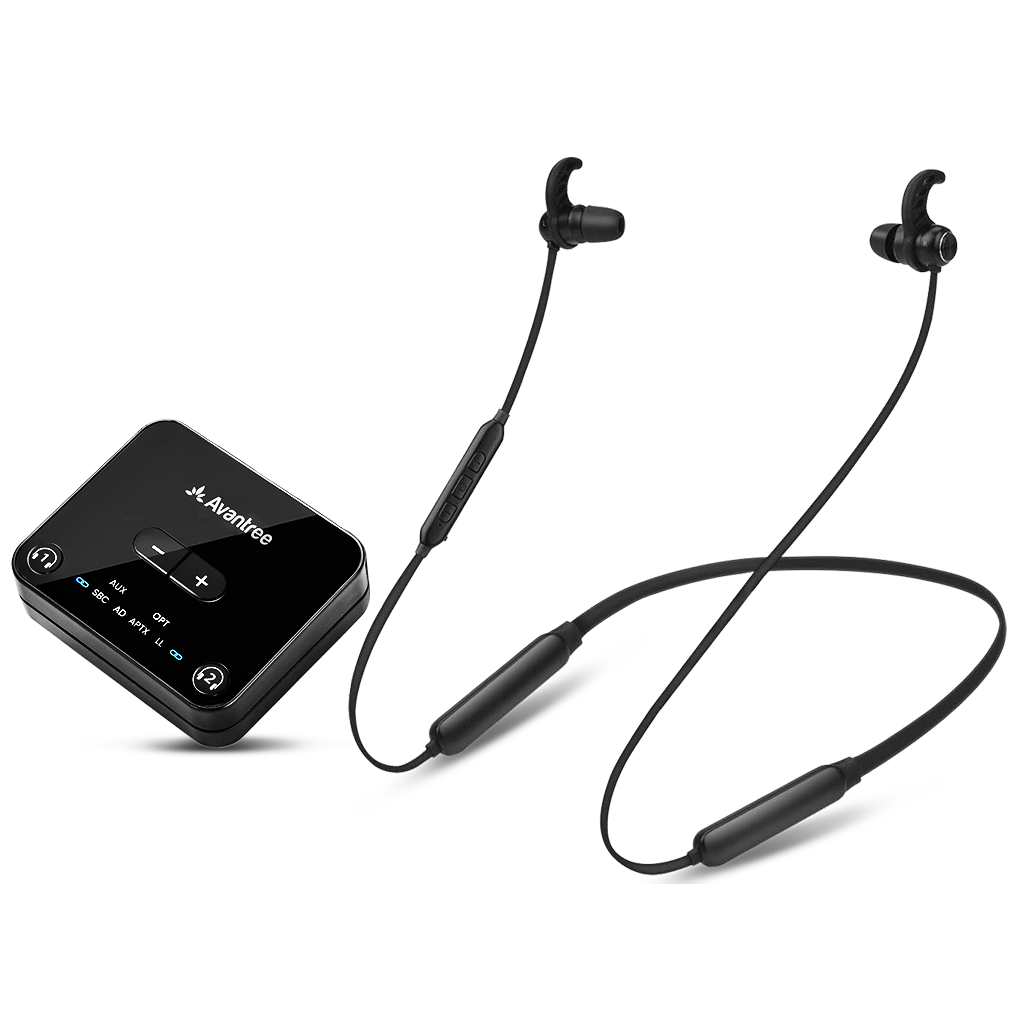
HT4186-Q neckband earbuds and transmitterPre-pairedUp to 20 hours

Start setup

Choose a setup method

The NB16-Q earbuds and transmitter are Pre-paired. Turn both on to connect automatically.

Recommended kit setup

Set up with the transmitter

Step 1 of 4 · Power

Power the transmitter

  1. Connect USB-C to the transmitter.
  2. Connect USB-A to a TV USB port or a 5 V / 500 mA–2 A USB power adapter. Keep USB power connected during use.
  3. Slide the transmitter power switch to ON.
transmitter
✓
Expected result: the transmitter indicators light or flash.
No light? Reseat both cable ends. Try another 5 V USB source. transmitter has no battery. On batch T24L1, remove the front QR sticker if it covers the lights.

Step 2 of 4 · Cable

Connect your TV

Check the labels beside the ports, then choose the first match below.
Only HDMI ARC / eARC? HT4186-Q has no HDMI input.See connection options →
Not sure? Take a photo of your TV ports.Contact Support →

Connect the Optical cable

  1. Remove the clear protective caps from both cable ends.
  2. TV: plug into OPTICAL / DIGITAL AUDIO OUT.
  3. Transmitter: plug into the OPTICAL / OPT input. Match the plug shape and insert gently.
✓
Ready

Both square plugs are fully inserted. Do not force the cable into the port.

Connect the AUX cable

  1. TV: plug into HEADPHONES / AUDIO OUT, not AV IN.
  2. Transmitter: plug into AUX.
  3. Raise TV output volume gradually if adjustable.
✓
Ready

Both round plugs are fully inserted. The TV may mute its speakers when you use its headphone jack.

Connect RCA audio OUT

Requires: an RCA-to-3.5 mm adapter cable, not included. Red / white AV IN sockets will not work.

  1. TV: connect red and white RCA plugs to the matching AUDIO OUT sockets.
  2. Transmitter: connect the 3.5 mm end to AUX.
✓
Ready

The TV audio OUT connects to the transmitter AUX input. No AUDIO OUT label? Choose another connection.

Step 3 of 4 · TV sound

TV sound settings

Use your TV remote.

Choose your cable in Step 2 to see the matching TV settings.

Open Settings → Sound

AUX / RCA
Sound OutputHeadphones or Audio Out

Raise TV output volume gradually if adjustable. No PCM setting is needed for this analog connection. For RCA, check your TV manual for the audio OUT setting.

Find PCM steps for your TV brand
TV speakers + headphones?Check TV compatibility and steps →
✓
Expected result: play speech and confirm the TV sends audio to the selected output. A valid transmitter input signal is solid white.

Solid blue confirms the Bluetooth connection, not TV audio. Confirm the input signal and listen for TV speech.

If not: check the TV output and cable. For Optical, set a connected streaming box to PCM / Stereo too. Fix no sound →

Step 4 of 4 · Listen

Turn on and listen

The original NB16-Q earbuds are already paired with transmitter. Finish the TV settings above, then:

  1. Hold the NB16-Q Multi-Function Button (MFB) for 3 seconds to turn the earbuds on.
  2. Keep the earbuds close to the transmitter and wait about 3–5 seconds for both connection LEDs to turn solid blue.
  3. Put on the earbuds, play TV speech and press + / − to adjust volume.
NB16-Q neckband earbuds
✓
Success: solid blue connection lights + TV sound through the earbuds.
No soundCannot connect

Next time: turn the transmitter ON, then hold NB16-Q MFB for 3 seconds. If automatic reconnection fails, press the earbud MFB once or transmitter listener 1 once. Re-pair if needed.

DIRECT TV BLUETOOTH

Pair directly with your TV

Requires a TV that supports Bluetooth headphone audio. This route may have more sound delay than using the included transmitter.

  1. Turn the transmitter OFF. Turn off Bluetooth on nearby phones that have used the earbuds.
  2. Turn the NB16-Q earbuds OFF. Hold the MFB for about 5 seconds, continuing past power-on until the LED alternates red and blue and you hear “Pairing.”
  3. Open the TV Bluetooth audio device list. On supported Samsung TVs: Home → Settings → Sound → Sound Output → Bluetooth Speaker List.
  4. Select Avantree NB16T-Q or NB16T, depending on the version displayed. Complete the TV's connection prompt.
  5. Play TV audio and adjust the earbud volume with + / −.

Done: the earbud LED is solid blue and you hear TV sound.

If not: verify the TV supports Bluetooth audio, return the earbuds to red / blue pairing mode and retry. If no Bluetooth audio list exists, use Optical, AUX or RCA with the transmitter.

No sound

Next time: turn on the earbuds and press MFB once to reconnect if needed, or select the saved device in the TV Bluetooth list. Re-pair if you used another device.

QUICK FIXES

What do you need help with?

Connected, but no TV sound

Possible cause: HT4186-Q is connected wirelessly, but the TV output, audio format, cable or volume is wrong.

  1. For transmitter setup, check both ends of the TV cable and use AUDIO OUT. For direct Bluetooth, keep the transmitter OFF and select the earbuds as the TV sound output.
  2. For Optical, set TV output to Optical and format to PCM / Stereo. Check PCM on a connected streaming box too.
  3. Play speech and raise the NB16-Q volume with +. For AUX, raise TV output volume if available.
  4. If the earbud LED is not solid blue, restore the Bluetooth connection.

Expected: the earbud LED stays solid blue and TV speech plays through the earbuds.

Still silent? Contact Support with the cable type and both LED states.

Earbuds will not connect or reconnect

Possible cause: the NB16-Q earbuds have connected to another device, or pairing / locking needs to be restored.

For HT4186-Q transmitter setup, turn the TV OFF and turn off nearby phone Bluetooth. If the transmitter uses TV USB power, temporarily move it to a USB wall adapter.

  1. Turn transmitter ON. Hold its listener 1 button for about 5 seconds until the nearby indicator alternates red and blue.
  2. Turn NB16-Q OFF. Hold its MFB for about 5 seconds, continuing past power-on until red / blue alternate and you hear “Pairing.”
  3. Keep the earbuds close to transmitter and wait for solid blue on both devices.
  4. Only after connection, hold transmitter 1 and 2 together for about 10 seconds until the indicator turns pink for a few seconds. Release to lock this connection.
  5. Turn both devices OFF, wait about 5 seconds, then turn the transmitter and earbuds ON. Wait 5–10 seconds.

Expected: both devices reconnect with solid blue lights. Turn the TV back ON, restore normal transmitter power and confirm TV sound.

If not: reset both devices, then repeat pairing and locking. Full HT4186-Q re-pair and lock guide.

Sound is too quiet

Possible cause: the NB16-Q volume or TV output level is low.

  1. Press NB16-Q + one click at a time.
  2. For AUX / adjustable RCA audio OUT, raise the TV output volume gradually.
  3. For Optical, press transmitter + to increase transmitter output. Optical volume boost is up to 6 dB.

Expected: speech becomes louder at a comfortable listening level.

If not: test another TV program, then contact Support.

Static, distorted sound or sound cuts out

Possible cause: Optical is receiving a non-PCM signal, an analog plug is loose, or the wireless path is obstructed.

  1. For Optical, set the TV and streaming source output to PCM / Stereo, not Dolby / DTS.
  2. For AUX / RCA, reseat the audio plugs and lower excessively high source volume.
  3. Move NB16-Q close to the transmitter and turn off nearby Bluetooth devices previously paired with the earbuds.

Expected: speech plays continuously without static.

If not: note which source or app fails and contact Support.

Sound is behind the picture

Possible cause: direct TV Bluetooth or a different second headphone uses a higher-delay connection, or TV processing adds delay.

  1. If using TV Bluetooth, reconnect the original HT4186-Q set using the transmitter's Optical / AUX / RCA path.
  2. Test the original NB16-Q alone before adding another headphone.
  3. Check the TV audio-sync / processing settings for your exact model.

Expected: speech and picture are closer in sync. Delay depends on the TV and connected devices.

If not: send Support your TV and headphone models. Changing cables alone does not guarantee a fix.

TV speakers or soundbar stopped playing

Possible cause: the TV mutes its speakers when headphones / external audio are selected, or the soundbar was using the same Optical output.

  1. Check the TV Sound settings for simultaneous TV speaker and Optical / Bluetooth output. Availability depends on the TV model.
  2. For AUX, check whether inserting a headphone plug automatically mutes the TV speakers.
  3. Keep the soundbar connected through a separate supported TV output if the TV allows simultaneous audio.

Not supported: HT4186-Q has no soundbar audio pass-through / bypass. It cannot pass its Optical input onward to a soundbar.

Expected: both play only when the TV or an appropriate external audio arrangement supports simultaneous outputs.

If not: ask Support about your TV and soundbar models.

No light on the transmitter

Possible cause: transmitter has no power. It does not hold a charge.

  1. Reseat the transmitter USB-C cable at both ends.
  2. Try a working 5 V / 500 mA–2 A USB wall adapter instead of TV USB.
  3. Slide the transmitter switch to ON. Try another USB-C cable if needed.

Expected: the transmitter indicators light or flash.

If not: contact Support.

DAILY USE & REFERENCE

Controls, charging and more

Charge the NB16-Q earbuds

For HT4186-Q, only the NB16-Q earbuds have a rechargeable battery. transmitter needs continuous USB power.

  1. Connect the supplied USB-C charging cable to NB16-Q.
  2. Connect the other end to a standard 5 V / 1 A or 2 A USB charger.
  3. Wait for solid red while charging. Disconnect when the LED turns off.

Done: the charging light turns off. Allow around 2–2.5 hours for a full charge; LED off is the completion check.

Up to 20 hours of use; actual time varies with volume and use. The latest power FAQ permits use while connected to the charging cable.

If not charging: reconnect the cable, then try another 5 V USB source and USB-C cable. Expected: solid red appears. Still no light? Contact Support.

HT4186-Q power and charging FAQ

Use the earbuds with a phone or computer

Use NB16-Q independently with a device that supports Bluetooth audio.

  1. Turn the transmitter OFF. Turn the NB16-Q earbuds OFF.
  2. Hold the earbud MFB for about 5 seconds until red and blue alternate and you hear “Pairing.”
  3. Open phone / computer Bluetooth settings and select Avantree NB16T-Q or NB16T, as displayed.
  4. Play audio and adjust earbud volume.

Done: the earbud LED is solid blue and device audio plays.

If not: disconnect other paired devices and repeat pairing. To return to the TV transmitter, turn phone Bluetooth off and turn on both kit devices; re-pair and lock if needed.

Add a second pair of headphones

HT4186-Q includes one NB16-Q. transmitter supports up to two Bluetooth listening devices; a second pair is not included.

Turn the TV OFF and nearby phone Bluetooth off. Use independent transmitter USB power if TV USB turns off.

  1. Turn on transmitter and the original NB16-Q. Wait for listener 1 = solid blue. Keep the original earbuds ON and connected.
  2. Put the second headphones into their Bluetooth pairing mode.
  3. Hold transmitter listener 2 for about 5 seconds until its indicator alternates red and blue.
  4. Keep the second headphones close and wait until indicators 1 and 2 are both solid blue.
  5. Turn the TV ON, play audio and check both headphones.

Done: both pairs play TV sound. Each listener adjusts volume on their own headphones.

If not: keep the original NB16-Q connected, disable nearby phone Bluetooth and repeat second-headphone pairing. Some true wireless earbud combinations are less reliable; test each pair alone.

Next time: connect the original NB16-Q first, then turn on the second headphones and wait 5–10 seconds. Press transmitter 2 once if the second pair does not reconnect.

Second pair only: connect the original pair first, connect the second, then switch the original OFF.

Full HT4186-Q second-listener guide

Clear pairing history / reset both devices

For HT4186-Q that will not reconnect after other Bluetooth use, reset both transmitter and NB16-Q. The official reset FAQ says the original paired and locked kit connection remains; other saved Bluetooth connections are cleared.

  1. Turn transmitter ON. Hold listener 1 and 2 together for 10 seconds until both Bluetooth indicators turn pink, then off. The listener 1 indicator then flashes red / blue. Turn transmitter OFF.
  2. Turn NB16-Q ON. Hold + and − together for 10 seconds until the earbud LED shows pink for about 2 seconds → solid red for about 2 seconds → off.
  3. Turn the transmitter ON, then NB16-Q ON. Keep them close and wait 5–10 seconds.

Done: both connection LEDs are solid blue and the earbuds announce “Connected.” Play TV audio to verify sound.

If not: turn off nearby Bluetooth, restart both devices and wait again. Still disconnected? Re-pair and lock, then contact Support if unresolved.

Locking is done after a successful connection; clearing pairing history is a recovery operation. Latest HT4186-Q reset instructions.

Find Optical / PCM settings on your TV

For HT4186-Q Optical setup, select Optical audio OUT and PCM / Stereo. Names vary by TV model.

Samsung
Settings → Sound → Sound Output → Optical. Then Sound → Expert Settings → Digital Output Audio Format → PCM.
LG
All Settings → Sound → Sound Out → Optical. Set Digital Sound Output to PCM and turn Dolby output off.
Sony
Settings → Sound / Display & Sound → Audio output → Digital Audio Out → PCM.
TCL
Settings → Audio → Advanced Settings → Digital Audio Out → PCM.
Roku TV
Settings → Audio → Audio output → Optical. Digital output format → Stereo.
Vizio
Settings → Audio → Digital Audio Out → PCM.

Done: TV speech plays through the connected earbuds without static.

If not: use your exact TV model's manual to find digital output settings, set a streaming box to PCM too, or contact Support.

HDMI only, occupied Optical port or AV receiver

HDMI ARC only: HT4186-Q cannot connect directly to HDMI. Use supported TV Bluetooth or an external HDMI ARC audio extractor with Optical / AUX output; follow that extractor's manual first. Then use the matching HT4186-Q cable setup above.

Occupied Optical port: HT4186-Q does not provide bypass. Use another TV audio output or ask Support about a suitable simultaneous-output arrangement.

AV receiver: use the receiver's headphone / audio OUT. A 6.35 mm headphone socket requires a 6.35-to-3.5 mm adapter, not included, into the transmitter AUX input. Receiver speakers may mute.

Done: the chosen device provides audio to transmitter and TV audio plays in NB16-Q.

If not: provide your TV / receiver / soundbar model to Support before purchasing an adapter.

Buttons and indicator lights

HT4186-Q components: NB16-Q neckband earbuds and transmitter. Transmitter listener buttons may use headphone symbols; indicators may use Bluetooth or chain-link symbols.

transmitter front listener 1 and 2 buttons and rear DC IN, Optical, AUX and ON/OFF controls
Transmitter: listener 1 is on the left; listener 2 is on the right. The power switch and cable sockets are on the rear.
Control / light Meaning or action
NB16-Q MFB Hold 3 seconds: ON / OFF. From OFF, hold about 5 seconds until red / blue alternate: pairing. One click: play / pause audio, or answer / end a phone call.
NB16-Q + / − One click: volume up / down. Hold 1 second: next / previous track on a supporting source. Phone voice assistant: tap both once together.
NB16-Q solid blue Connected; a brief 1-second blue light can also indicate power-on. Confirm audio separately.
NB16-Q red / blue alternating Bluetooth pairing; “Pairing” prompt.
NB16-Q blue flash every 5 seconds Disconnected.
NB16-Q red flash every 5 seconds Low battery; “Low battery” prompt. Charge the earbuds.
NB16-Q solid red / off during charging Solid red: charging. Off after charging: fully charged.
transmitter ON / OFF Power switch. USB power must remain connected during use.
transmitter 1 / 2 Hold matching listener button about 5 seconds: pairing. After connection, hold both about 10 seconds: lock. See the reset section for clearing pairing history.
transmitter connection indicators Blue flashing: reconnecting. Red / blue alternating: pairing. Solid blue: connected to the matching listener.
transmitter OPT / AUX signal Solid white: valid audio signal. Red flashing: invalid audio signal; check the input and PCM for Optical.
transmitter codec lights AD: aptX Adaptive. APTX: aptX. LL: aptX Low Latency. SBC: SBC. The active codec depends on connected devices.
What is included and supported?
  • transmitter and one NB16-Q neckband earbud set.
  • USB-C transmitter power cable and USB-C earbud charging cable.
  • Optical cable, 3.5 mm AUX cable, extra S / L ear tips.

Supported: TV Optical PCM audio OUT, 3.5 mm headphone / audio OUT, RCA AUDIO OUT with a separate adapter, and direct earbud pairing with Bluetooth audio TVs.

Not supported: direct HDMI audio input, soundbar pass-through / bypass, or using the transmitter without USB power.

Requires: a separate USB wall adapter if TV USB is unavailable, and separate RCA or 6.35 mm adapters for those connections.

This guide is for HT4186-Q, not the older HT4186 or dual-earbud HT41866-Q.

Do I need a firmware update?

For HT4186-Q connection problems, try re-pairing and resetting both devices first. Contact Avantree Support to confirm whether any firmware applies to your exact transmitter or NB16-Q version before updating.

Ask Support about your device version