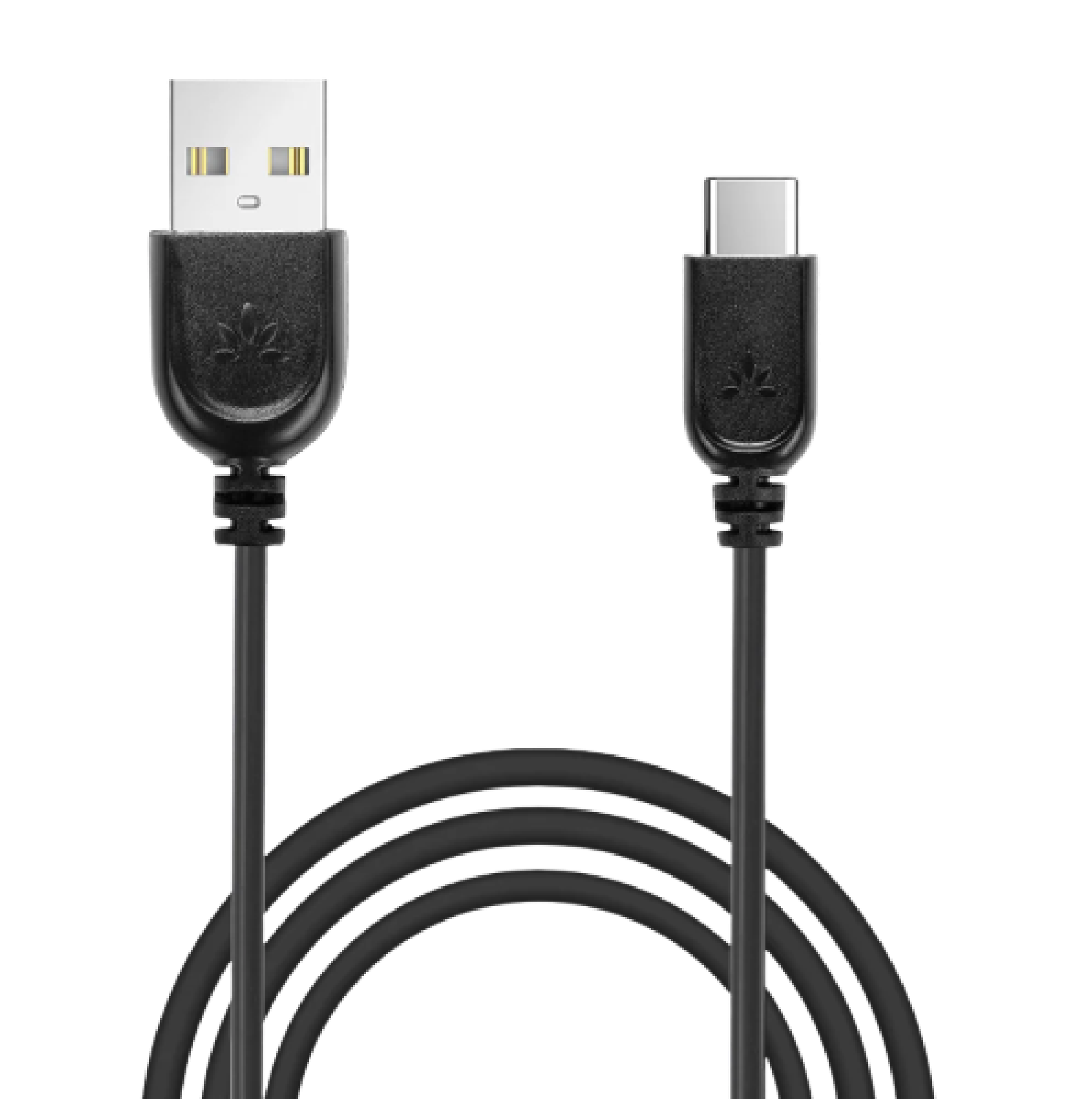
Optical cable
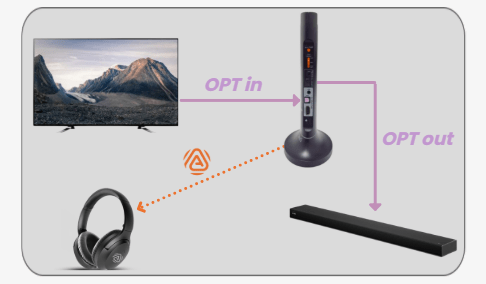
- Sound Output
- Optical / External Speaker
- Digital Audio Format
- PCM or Stereo

Interactive user guide
 HDMI ARC · Optical · AUXAuracast · up to 35 hours
Start setup
Choose the option that works best for you.
★ We recommend Duet Aura for the best experience.
How the recommended setup works
For normal TV use, do not pair by Bluetooth. A solid orange headphone LED means it has joined the transmitter.
Got it — Start setupRecommended kit setup
Follow each step in order. We show what to do, what to look for, and how to fix it.
Step 1
Place it near the TV. Keep the audio cable loose, not stretched.
Step 2
Look at the labels on the back or side of the TV, then choose the matching path.
Tap a connection to reveal its cable, switch position, and next setting.
Step 3
Use your TV remote. Then match the settings to your cable.
No PCM setting needed.
Step 4
Keep them near the transmitter.
TV Bluetooth setup
This bypasses the Duet Aura transmitter and may have more delay.
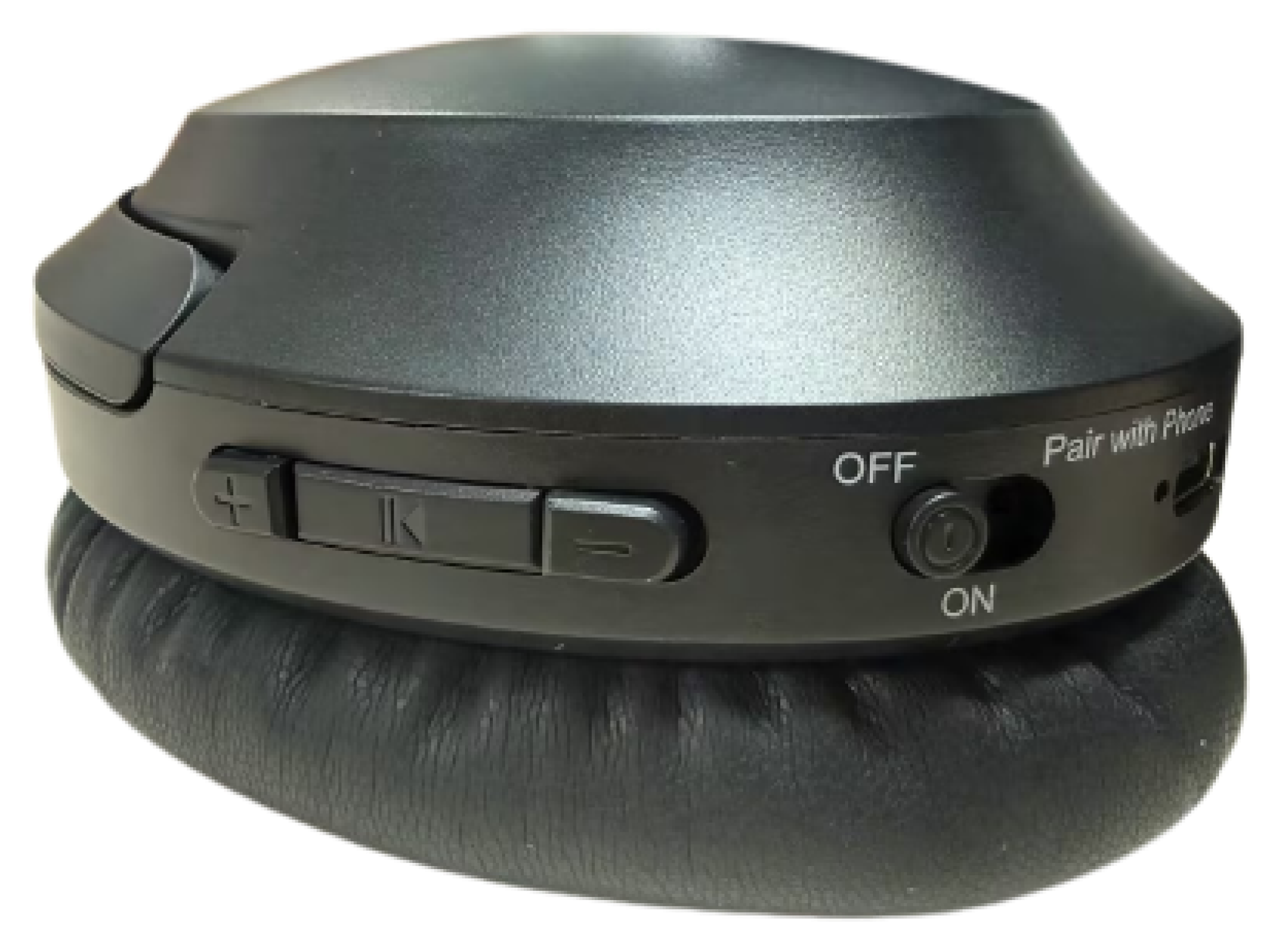
Hold the power switch at Pair with Phone for 3 seconds until red and blue flash.
Open the TV Bluetooth audio list and select Aria Aura.
Solid blue means the Bluetooth connection is ready.
Too much lip-sync delay?
Make dialogue louder
Daily use
Use the powered dock or a USB-C cable.
Power & charging
Not charging? Reseat the headphones or USB-C cable and verify the power source.
Up to 35 hours of playtime. Actual time varies with volume, connection, and use.
Daily use
Match the input and output cable.
Private listening
Private Mode uses an encrypted, password-protected Auracast broadcast.
The feature is not available yet. Once released, it will be added to the headphones through a DFU firmware update.
Use the open Duet Aura broadcast for normal TV listening. The headphone app is only needed for password-protected broadcasts.
Hearing aids guide
Works with compatible Auracast-enabled hearing aids.
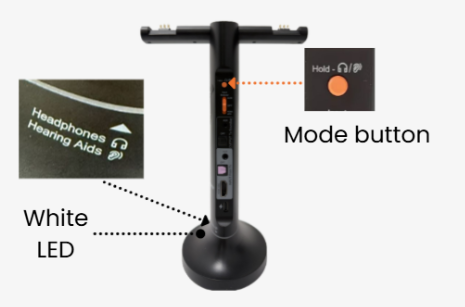
It should be white.
Not white? Hold the transmitter Mode button for 3 seconds.
Use your hearing aids or their app to join the Duet Aura Auracast broadcast.
Expected: the Mode light is white and TV audio plays through your hearing aids.
Quick fixes
Each fix states the action, expected result, and next step.
Expected: solid orange and TV sound. If it still fails, hold + and − together for 5 seconds to reset the headphones, then search again.
Expected: the Audio Signal light is solid and spoken dialogue plays. Still silent? Reopen Step 2 and follow the matching connection path from the beginning.
A soundbar already using the ARC port must be disconnected or rerouted; Duet Aura soundbar pass-through is Optical/AUX only.
If there is still no light, submit a support ticket with a photo of the power connection.
In the box
2 headphones + transmitter charging dockUSB-C power cable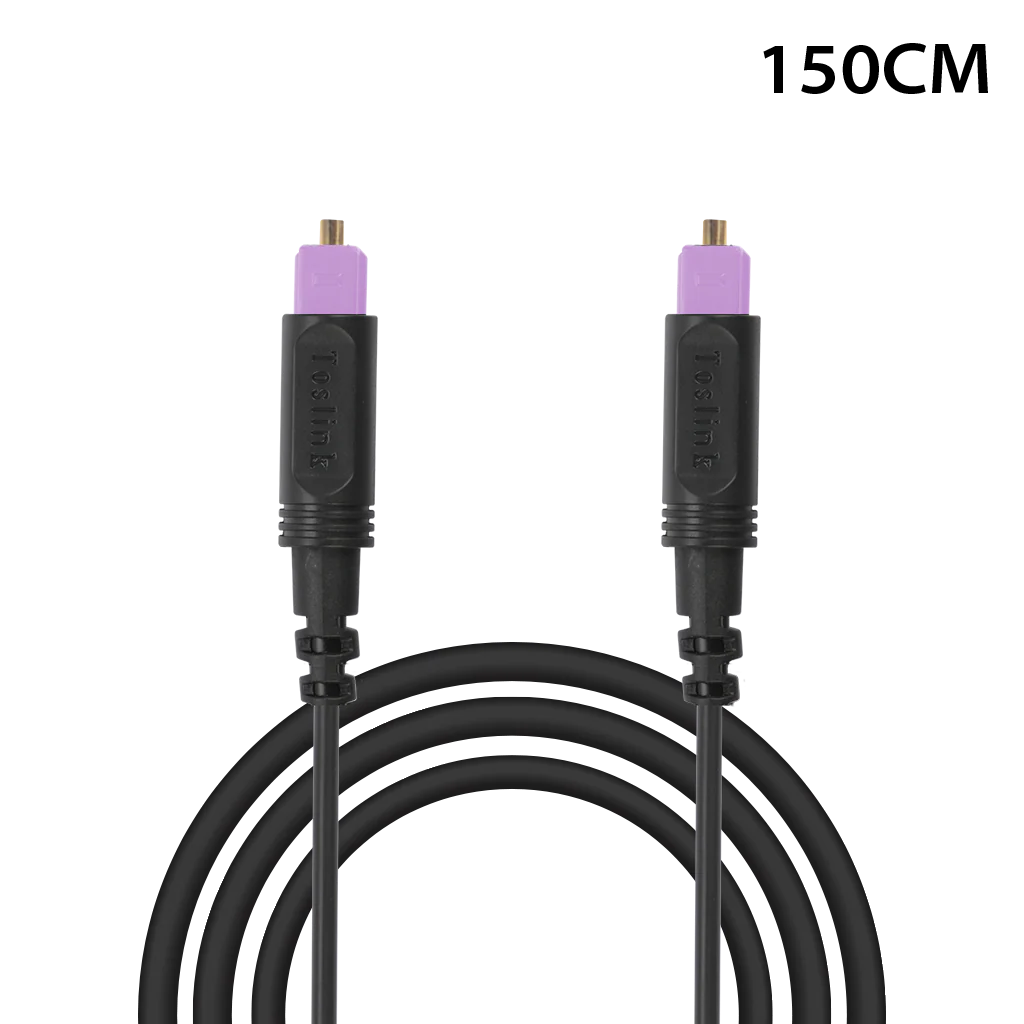 Optical cable
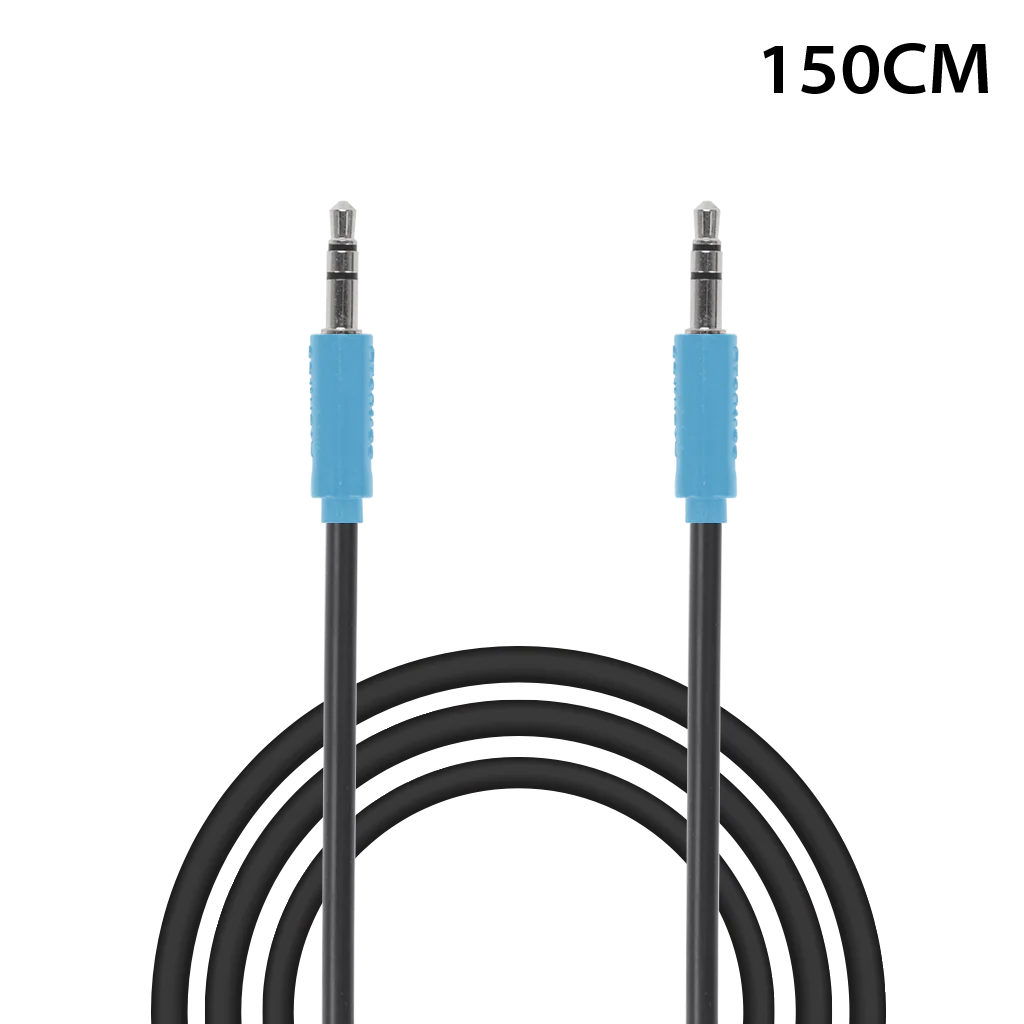 AUX cable
HDMI cable is not included. Use a standard HDMI cable only when connecting through HDMI ARC.
Reference
FIRMWARE UPDATE
Firmware update instructions are not available yet. No action is needed now.