Interactive User Guide · AuraCoil / VRC-390

Hear public Auracast through your T-coil hearing aids.

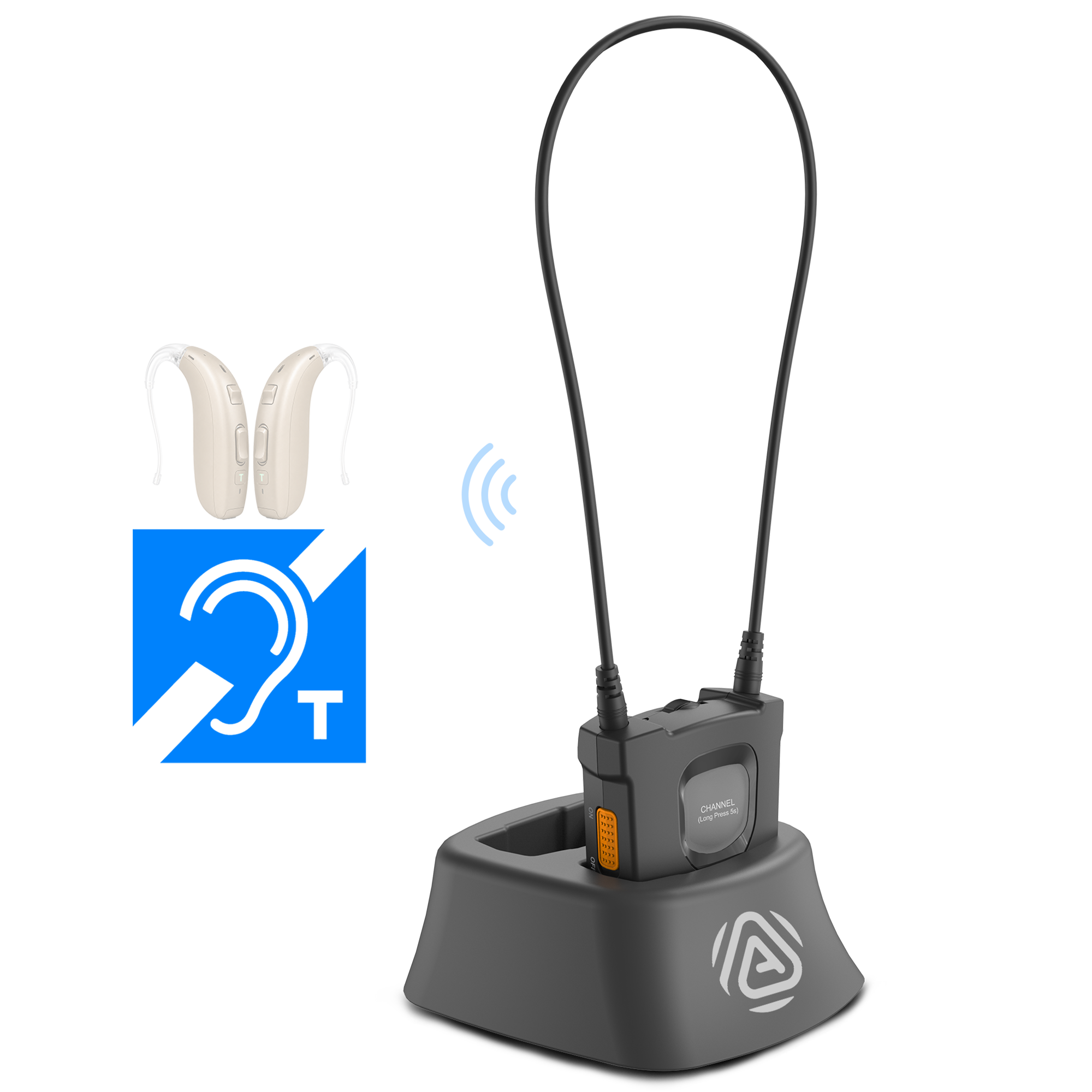
Built-in neckloop—no extra receiver or cable.

Avantree AuraCoil Auracast receiver with built-in T-coil neckloopT-coil hearing aids compatibility symbol
Public Auracast
broadcast
AuraCoil
receiver
T-Coil
Hearing Aids

Quick setup

Four steps to start listening.

Complete each step to unlock the next.

Step 1

Check your hearing device and broadcast.

AuraCoil currently joins public broadcasts only.

Have these ready:

  • AuraCoil, charged.
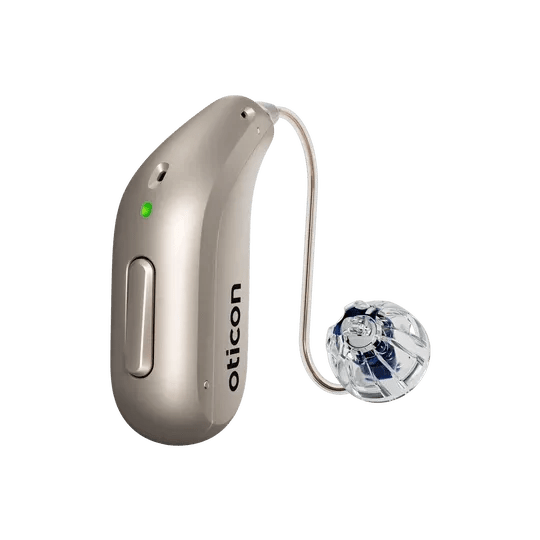
  • T-coil hearing aids or a compatible cochlear implant with T / MT mode.
  • An active public Auracast broadcast nearby.

If you cannot find T / MT mode, contact your hearing care professional.

Everyday use

Adjust the sound.

Start low and change one control at a time.

Make listening comfortable.

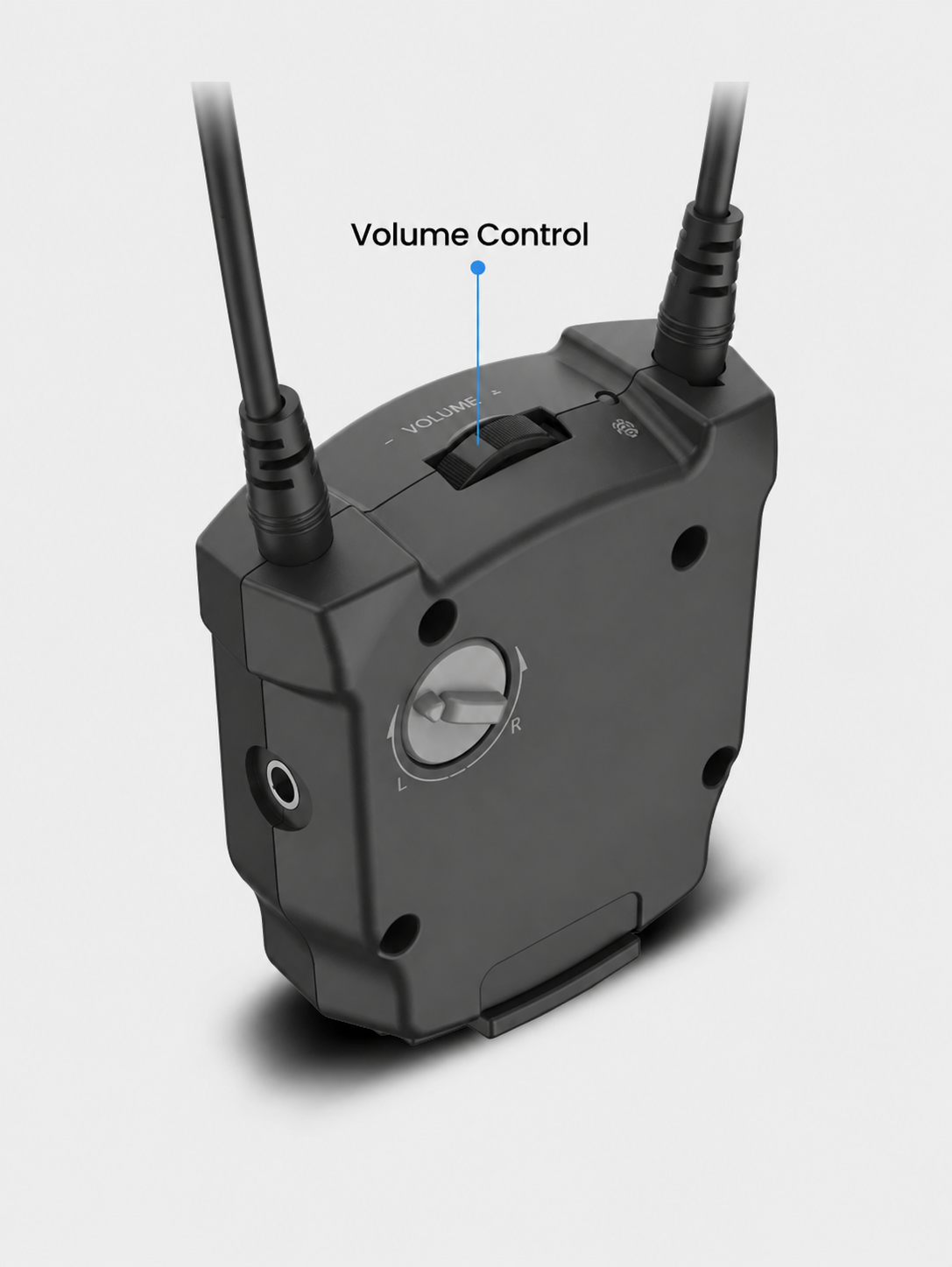
  1. Start at a low level, then raise the top VOLUME control gradually.AuraCoil top volume control
  2. If sound is not centered, adjust the rear L / R control toward the quieter side.
  3. Keep the complete neckloop around your neck while listening.
Ready: speech sounds clear, comfortable, and centered.

Battery

Charge AuraCoil.

Use the included dock to charge and store AuraCoil.

Keep it ready for your next visit.

  1. Place AuraCoil fully into the included charging dock.
  2. Make sure it sits securely in the dock.
AuraCoil positioned above its charging dock
Battery: up to 20 hours of listening. A replacement battery is sold separately.

Quick fixes

Choose the symptom.

Try these checks in order.

×No sound
  1. Confirm AuraCoil is switched ON.
  2. Confirm your hearing aid or cochlear implant is in T / MT mode.
  3. Press CHANNEL, pause, and listen; repeat to check the other available public broadcasts.
  4. Raise AuraCoil volume gradually.

Expected: you hear the venue's public broadcast. If not, ask venue staff to confirm that the broadcast is active and public.

Sound is too quiet or uneven
  1. Keep the complete neckloop around your neck.
  2. Raise the top VOLUME control gradually.
  3. Move the L / R balance control toward the quieter side only as needed.
  4. Check the T / MT listening level on your hearing device.

Expected: speech is comfortably audible and centered.

Sound cuts in and out
  1. Keep AuraCoil close to the venue coverage area and away from large obstructions.
  2. Keep the neckloop fully around your neck.
  3. Confirm the broadcast is still active, then press CHANNEL once and return to the intended broadcast if needed.
  4. Recharge AuraCoil and retry.

Expected: sound remains stable in the venue's broadcast area.

?I cannot join a protected broadcast

Current limitation: AuraCoil can directly join public Auracast broadcasts only.

Encrypted broadcasts will require the future mobile app. AuraCoil will connect to the phone through BLE, and the user will join the encrypted broadcast in the app. The app is not available yet.

STILL NEED HELP?

Get help with AuraCoil.

Send us your issue

A support agent will reply. Include AuraCoil, your hearing-device model, the symptom, and what the Auracast light shows.

Submit a ticket →

CONTACT SUPPORT DIRECTLY

Email or call us