English

Interactive User Guide · Aura Focus / BTHT-4250

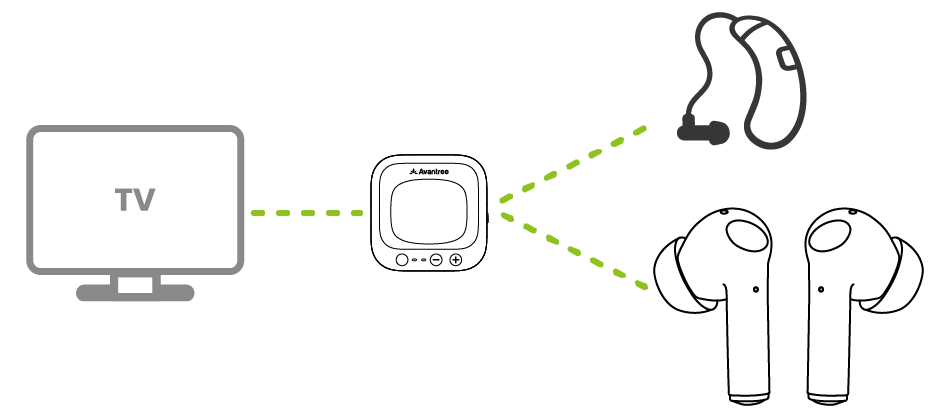
Clear, low-delay TV sound through in-ear Auracast earbuds.

Connect the transmitter by Optical or AUX. If your TV only has HDMI ARC/eARC, add a HAX06 HDMI-to-Optical adapter first.

For normal TV listening, power the transmitter and remove the earbuds from the case—no Bluetooth pairing is needed.

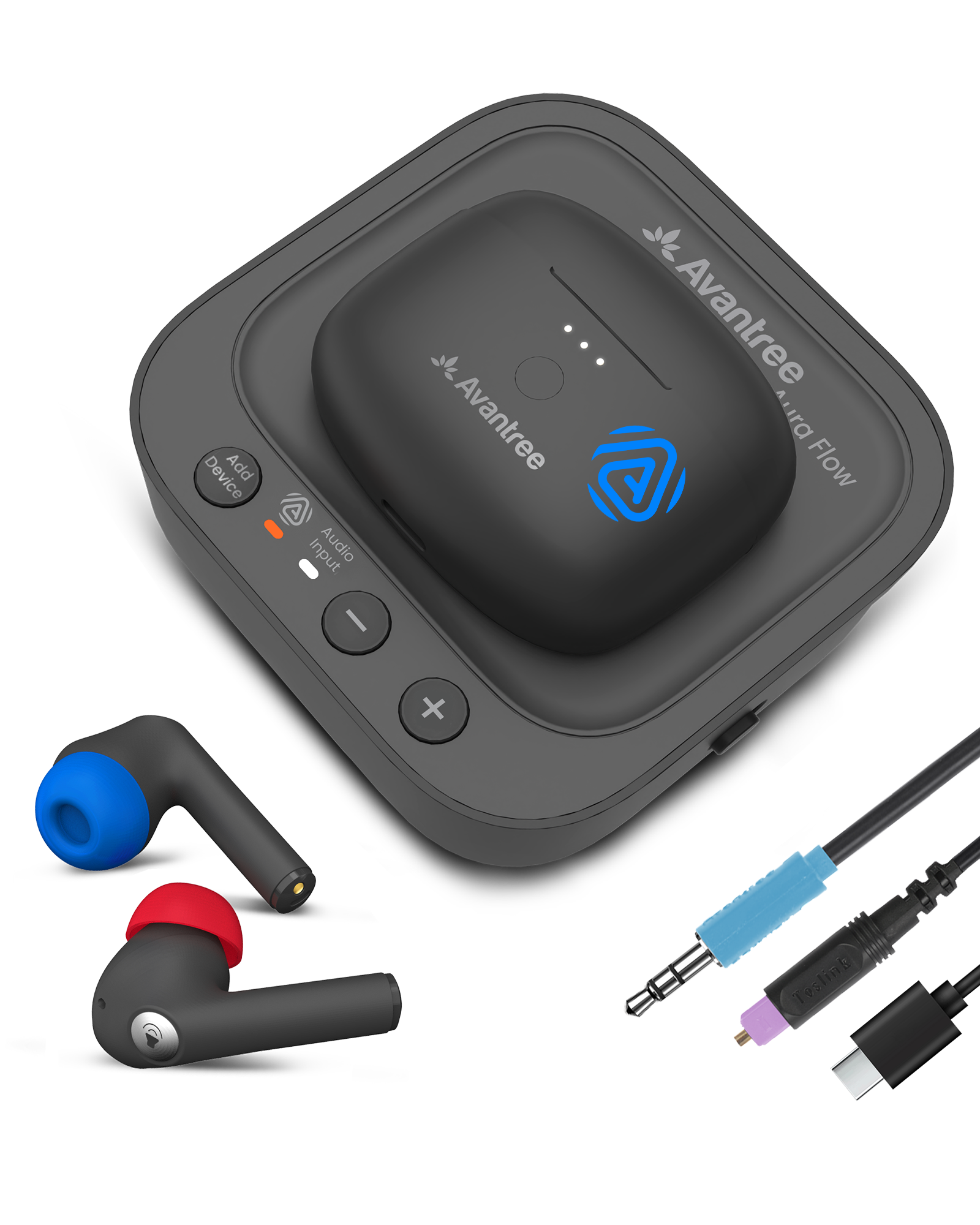
Aura Focus earbuds, transmitter, and charging dockSecure in-ear fitAuracast TV audio

Start setup

What do you want to set up?

Choose the option that works best for you.

★ Use the transmitter for the lowest-delay TV listening experience.

Adjust volume

Adjust volume from the earbuds, transmitter, or TV.

Use one deliberate tap on an earbud and pause briefly between taps.

Left blue earbud button controls volume down and right red earbud button controls volume up
Tap the round silver button once.

1 On the earbuds

  • Single-tap the left (blue) earbud: Volume −
  • Single-tap the right (red) earbud: Volume +

2 On the transmitter

  • Use the + / − buttons.

3 On your TV (if available)

  • Optical: TV volume may be fixed.
  • AUX: use the TV remote.
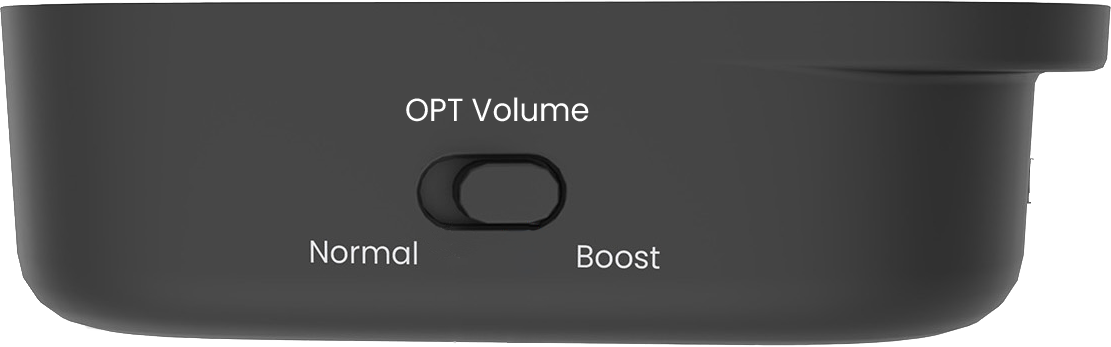
Aura Focus transmitter OPT Volume Normal and Boost switch
OPT Volume switch: Normal → Boost

4 Volume too low with Optical?

  • Switch OPT Volume from Normal to Boost.

Listen with earbuds

Get a secure, comfortable fit.

Start with the medium ear tips. Change size only if an earbud feels loose or uncomfortable.

1

Insert

Place each earbud in the matching ear.

2

Rotate

Turn it gently until it sits securely.

3

Check

Shake your head lightly. If it moves, try another tip size.

Good fit: secure, comfortable, and clear sound.

What do the 3 white dots mean?

They show the charging case battery level.

Where do I tap?

Tap the round silver area once: left = Volume −, right = Volume +.

Earbud still loose? Open Aura Focus FAQ →

Advanced · Optional

Use as Bluetooth earbuds.

  1. 1

    Turn off the transmitter.

  2. 2

    Open the case. Hold the case button for 2 seconds. LEDs blink red & blue.

  3. 3

    Turn on Bluetooth on your phone or PC. Select Aura Focus.

LED turns solid blue for 1 second, then off.

Quick fixes

Match what you see.

Each fix states the action, expected result, and next step.

Earbuds won't join the transmitter
  1. Confirm the transmitter is powered on and playing TV audio.
  2. Place both earbuds in the charging case, close it for 5 seconds, then remove both together.
  3. Keep the earbuds close to the transmitter while they reconnect.

Expected: each earbud shows solid blue for 1 second, then its light turns off and TV sound plays. If not, submit a support ticket with the LED pattern.

🔇Joined, but no TV sound
  1. Check the cable: use TV audio OUT and connect it to transmitter OPTICAL or AUX.
  2. HDMI-only TV: connect HDMI ARC/eARC to HAX06, then HAX06 Optical OUT to transmitter OPT IN.
  3. Check the TV: Optical or HAX06 requires PCM/Stereo. AUX requires Headphones output and normal TV volume.
  4. Restart: turn the transmitter OFF, then ON.

Expected: the Audio Signal light is solid and dialogue plays. If it still blinks, recheck the selected TV output.

ARCTV only has HDMI ARC / eARC
  1. Aura Focus does not accept HDMI directly.
  2. Connect TV HDMI ARC/eARC to the HAX06 adapter.
  3. Connect HAX06 Optical OUT to transmitter Optical input.
  4. On the TV choose HDMI ARC/Receiver, turn eARC off if required, and select PCM/Stereo.

Expected: the Audio Signal light becomes solid. A standard HDMI cable connected directly to Aura Focus cannot work.

Charging-case middle light blinks, side lights stay solid
  1. Place both earbuds fully into the charging case and confirm their contacts are seated.
  2. Connect the case to USB-C power or place it correctly on the powered charging dock.
  3. Leave it charging for about 2 hours, then remove and reinsert both earbuds.

Expected: the three white case lights indicate the case battery level. If the middle light continues blinking abnormally after a full charge, submit a support ticket with a short video of the pattern.

±Volume taps respond slowly
  1. Tap the center of the round silver control once—left for volume down, right for volume up.
  2. Wait briefly for the volume step before tapping again.
  3. Dry the control surface and your fingertip, then retry.

Expected: each deliberate tap changes one volume step. If it remains unresponsive, use the transmitter + / − buttons and contact support.

No light on transmitter
  1. Reconnect USB-C at both ends.
  2. Try a known-working 5 V USB adapter.
  3. Slide the transmitter switch to OFF, then ON.

If there is still no light, submit a support ticket with a photo of the power connection.

🔋Earbuds will not charge
  1. Confirm the dock has power.
  2. Align the charging contacts and look for solid red.
  3. Try USB-C charging directly.
  4. Allow about 2 hours.

Daily use

Charge the earbuds.

Use the powered dock or a USB-C cable.

Power & charging

About 2 hours for a full charge.

  1. Use the powered dock or USB-C with a 5 V, 1–2.4 A source.
  2. On the dock, align the charging contacts.
  3. Solid red means charging; the LED turns off when full.

Not charging? Reseat the earbuds or USB-C cable and verify the power source.

Battery reference

Up to 6 hours of playtime. Actual time varies with volume, connection, and use.

Share TV sound

Use TV speakers or a soundbar with Aura Focus.

The TV must support two audio outputs at the same time.

TV SPEAKERS + EARBUDS

Possible when your TV supports simultaneous output.

  1. Connect Aura Focus to the TV Optical output.
  2. In TV Sound settings, choose TV Speaker + Optical, Simultaneous Optical Output, or Dual Audio Output.
  3. Set Digital Audio Format to PCM.
SOUNDBAR + EARBUDS

First check whether the TV has a second active audio output.

Yes — a separate Optical or AUX output works:
Keep the soundbar connected. Connect Aura Focus to that separate output, then enable simultaneous output on the TV.

No — HDMI ARC/eARC is the only active output:
Aura Focus and the soundbar cannot play together directly.

Important: Aura Focus has no audio passthrough. HAX06 can connect Aura Focus to an available HDMI ARC port, but it cannot split a port already used by a soundbar.

More listeners

Add compatible Auracast receivers.

Aura Focus can broadcast to as many as 100 compatible Auracast receivers. Other brands may require an Auracast-capable Android phone or companion app.

1. Start transmitter discovery

Hold ADD DEVICE on the transmitter for 2 seconds. Its light flashes orange rapidly.

2. Join from the receiver

For compatible Avantree receivers, follow that receiver's Auracast setup guide or companion app. For hearing aids or other brands, use their Auracast Assistant or companion app.

3. Confirm connection

Keep the receiver close while joining. Its own guide or app should confirm the Aura Focus broadcast is selected.

Important: classic Bluetooth headphones cannot join this Auracast transmitter.

Private listening

Private Mode is coming soon.

Private Mode uses an encrypted, password-protected Auracast broadcast.

Until then

Use the open Aura Focus broadcast for normal TV listening. The headphone app is only needed for password-protected broadcasts.

Register for product updates →

In the box

Everything included.

Aura Focus earbuds and transmitter charging dockEarbuds + transmitter dock
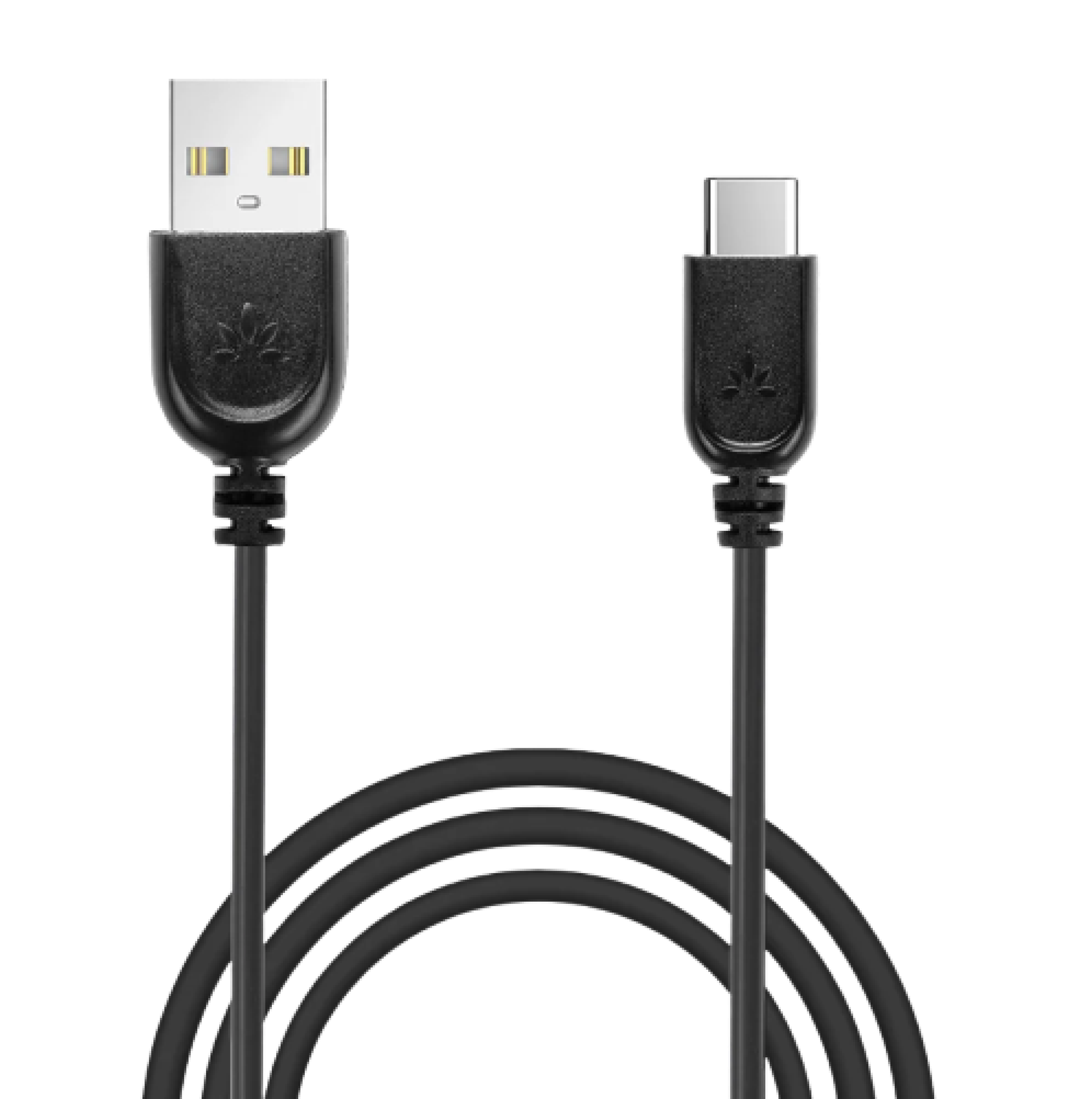
USB-C power cableUSB-C power cable
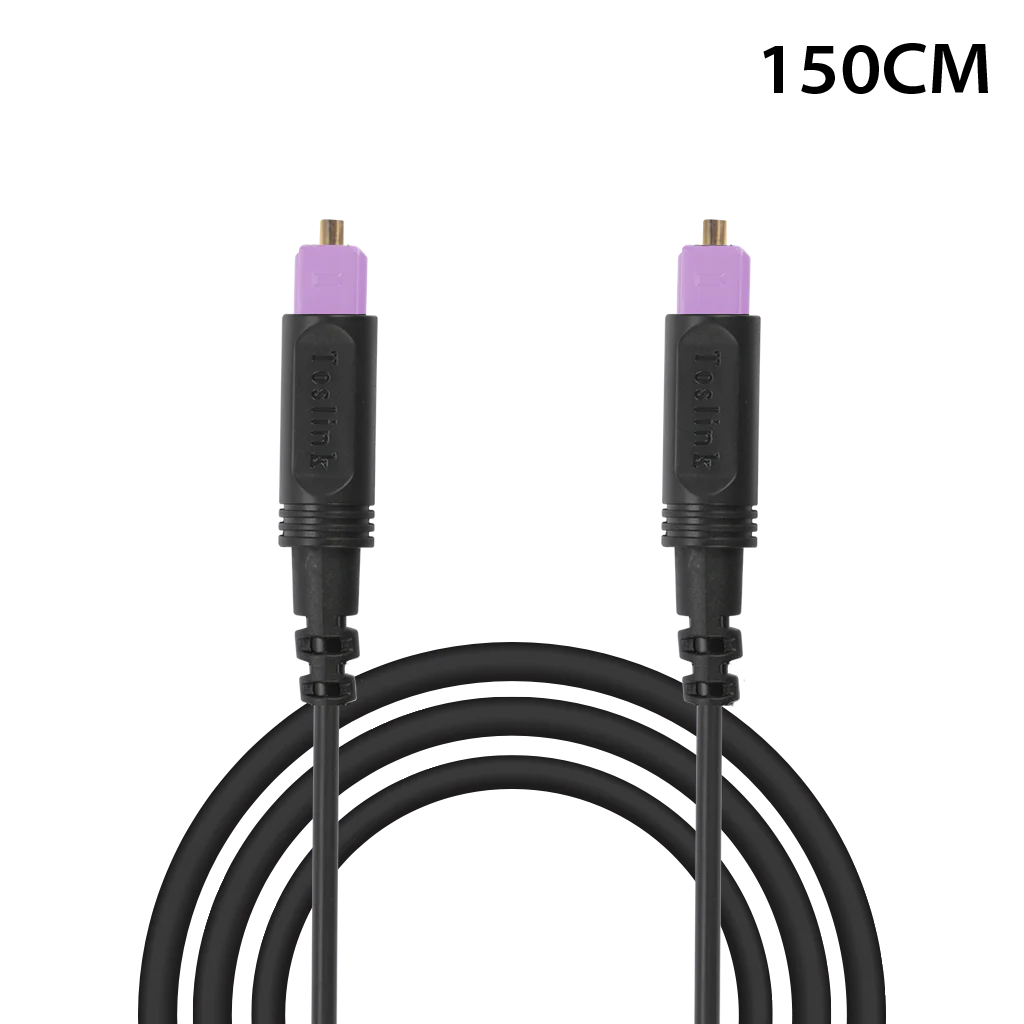
Optical audio cableOptical cable
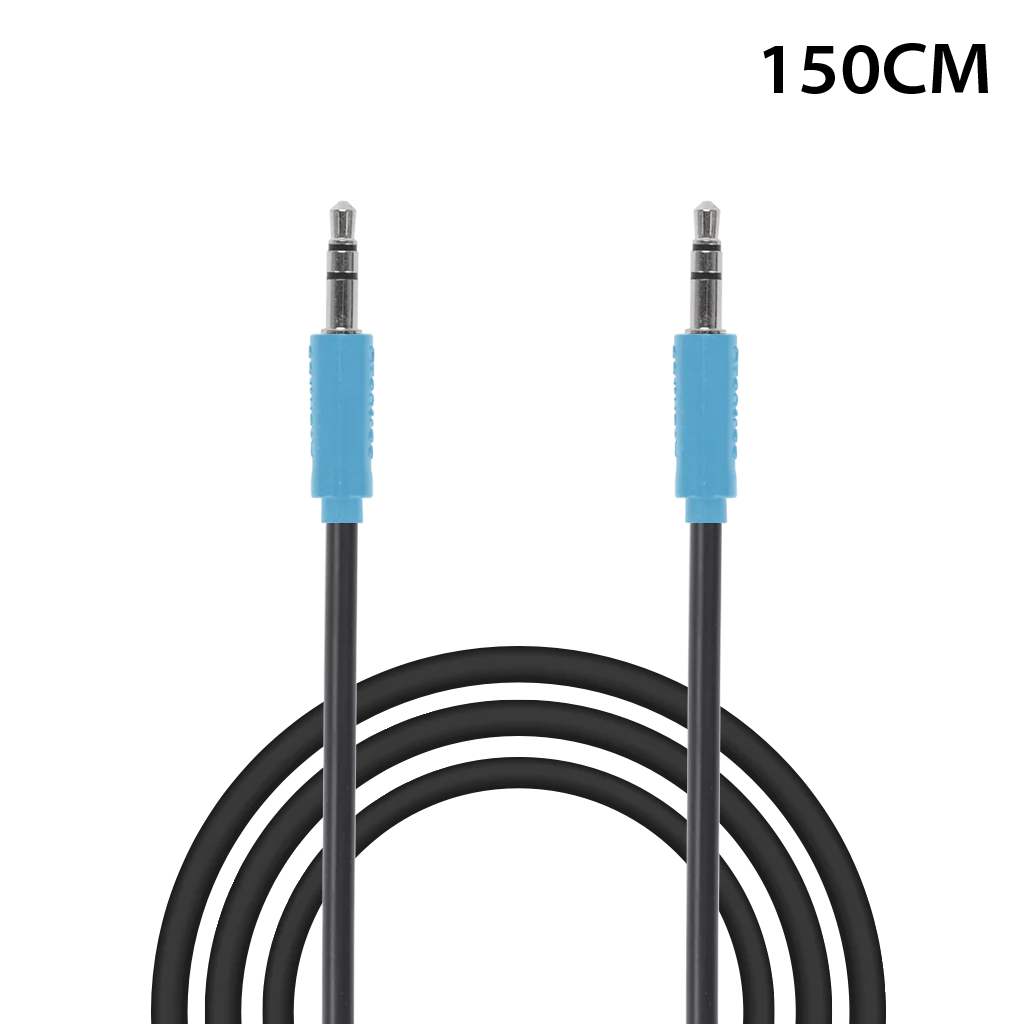
3.5 mm AUX audio cableAUX cable

HDMI ARC is not built in. For an HDMI-only TV, use a HAX06 HDMI ARC-to-Optical adapter (sold separately).

Reference

Connections, lights, and official help.

Quick reference

TV inputs
Optical PCM or 3.5 mm AUX
HDMI ARC/eARC
Not supported directly; requires HAX06 HDMI-to-Optical adapter
Solid blue for 1 second
Joined Auracast for 1 second, then LED off
Red + blue
Bluetooth pairing mode
Charge time
About 2 hours
Maximum receivers
Up to 100 compatible Auracast receivers
Playtime
Up to 6 hours

FIRMWARE UPDATE

Update Aura Focus when a fix or feature requires it.

Not part of normal setup. Update only when Avantree Support recommends it or the official Aura Focus update page directs you to do so.

  1. 1
    Open the Aura Focus update pageCheck the available release and read all product-specific requirements first.
  2. 2
    Prepare the listed device and cableUse the device, computer, and USB data cable specified on the update page.
  3. 3
    Run the updateKeep the device connected until the updater confirms completion, then follow its restart or reset step.

During the update: do not unplug the device, close the updater, or turn off the computer.

STILL NEED HELP?

Get the right help for Aura Focus.

Choose Aura Focus / BTHT-4250 and include the TV model, connection type, LED pattern, and a clear photo of the TV and transmitter ports.

Was this helpful?

Thanks for your feedback!