
Auracast · At home
TV transmitter
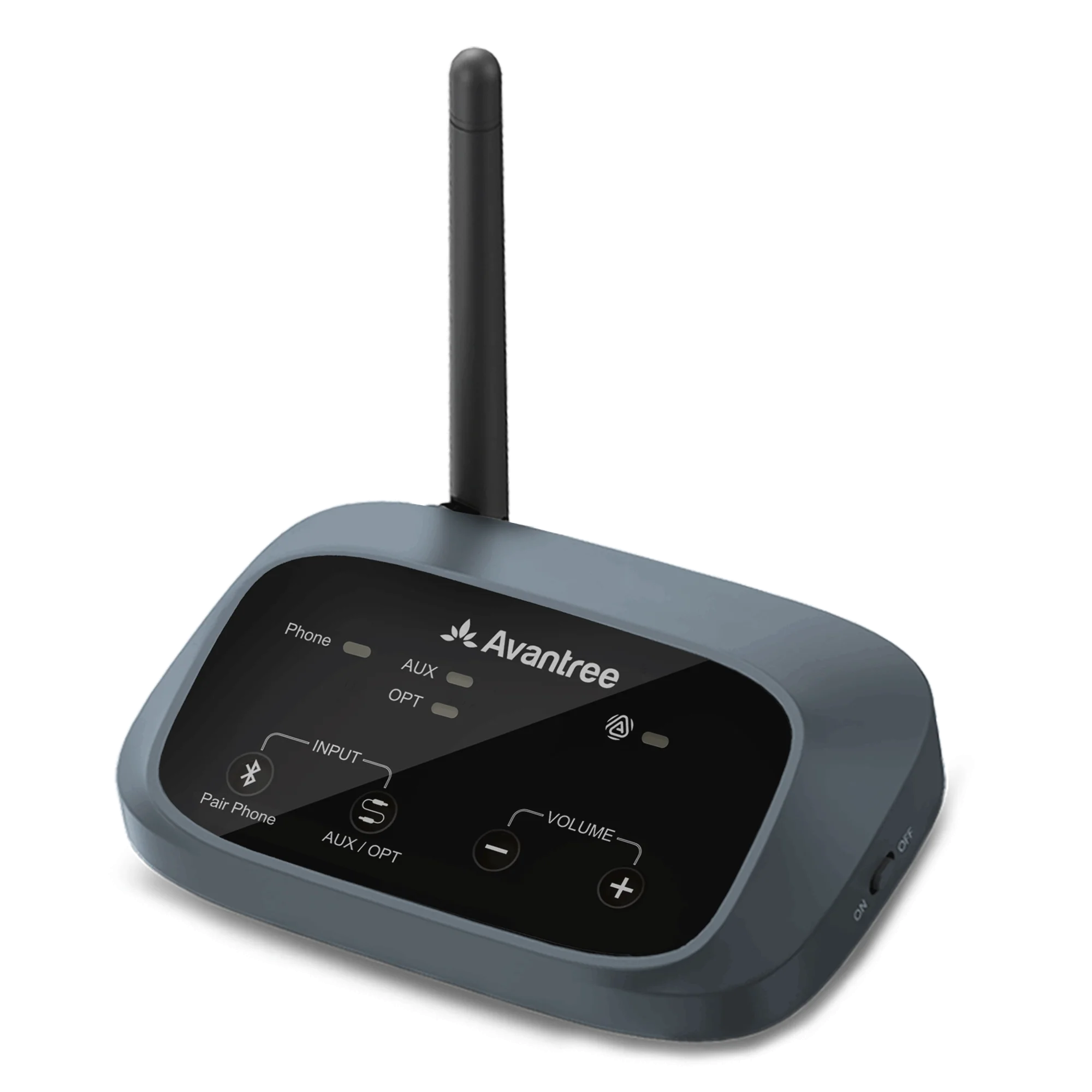
Use the same 5-second Auracast search near a compatible TV transmitter. Supported Avantree systems include:
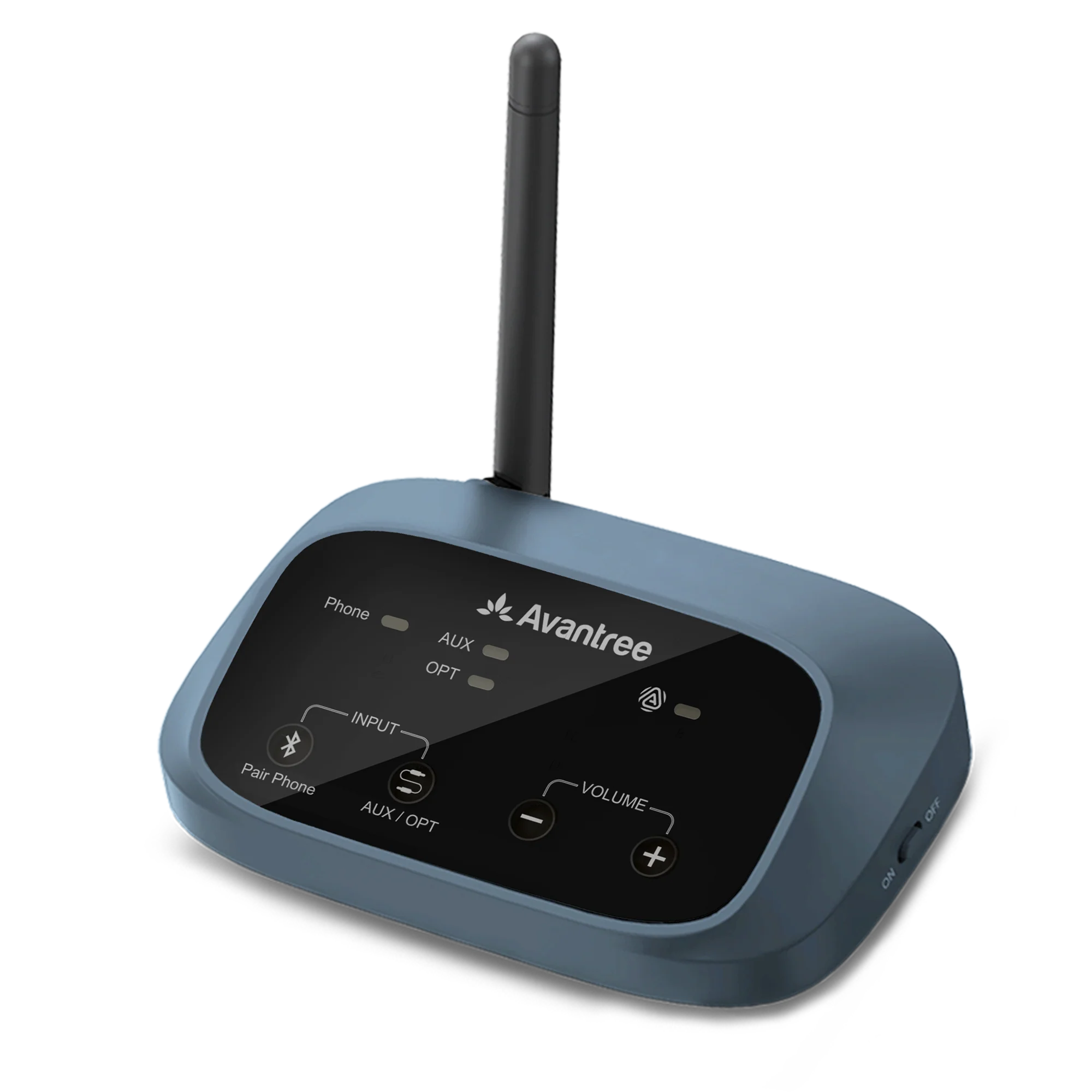 Oasis Aura
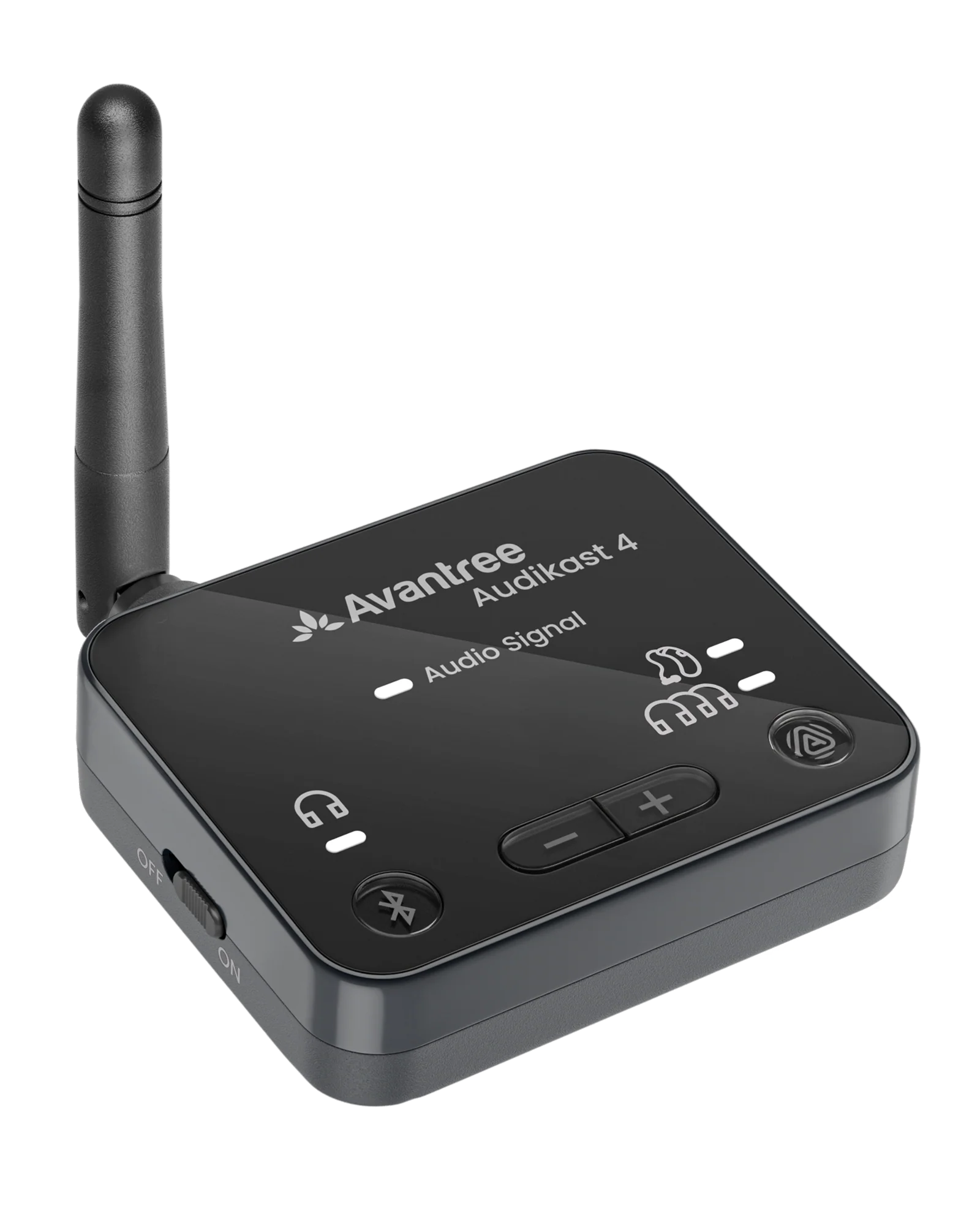 Audikast 4
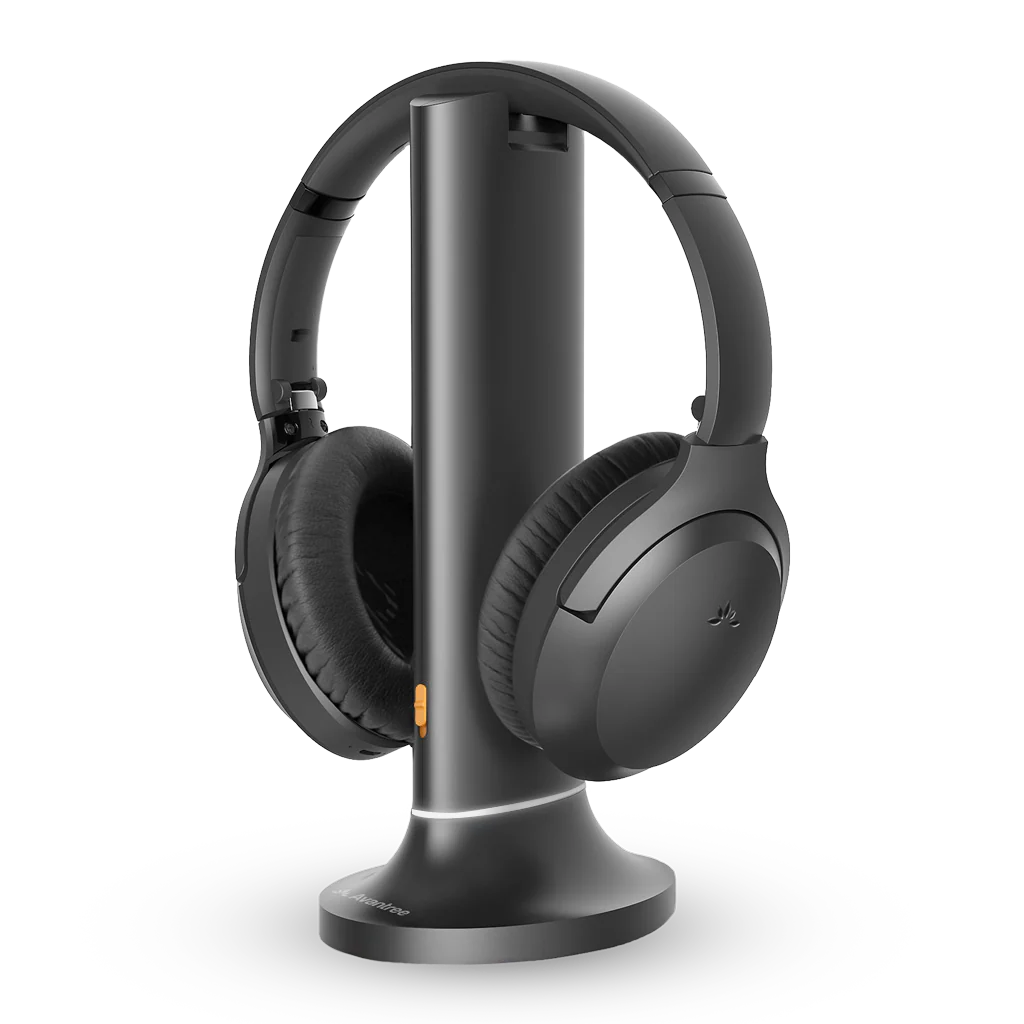 Opera Aura
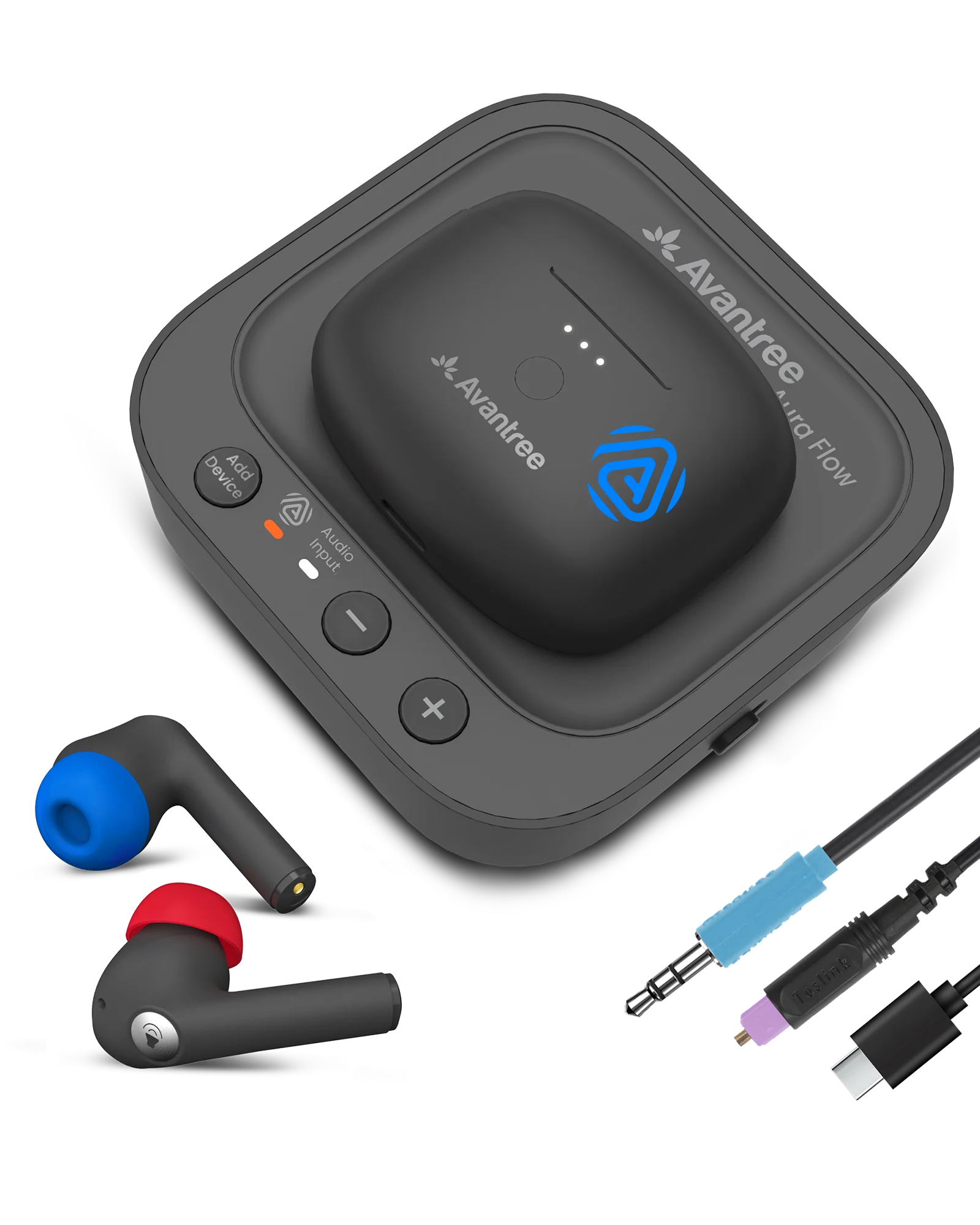 Aura Focus
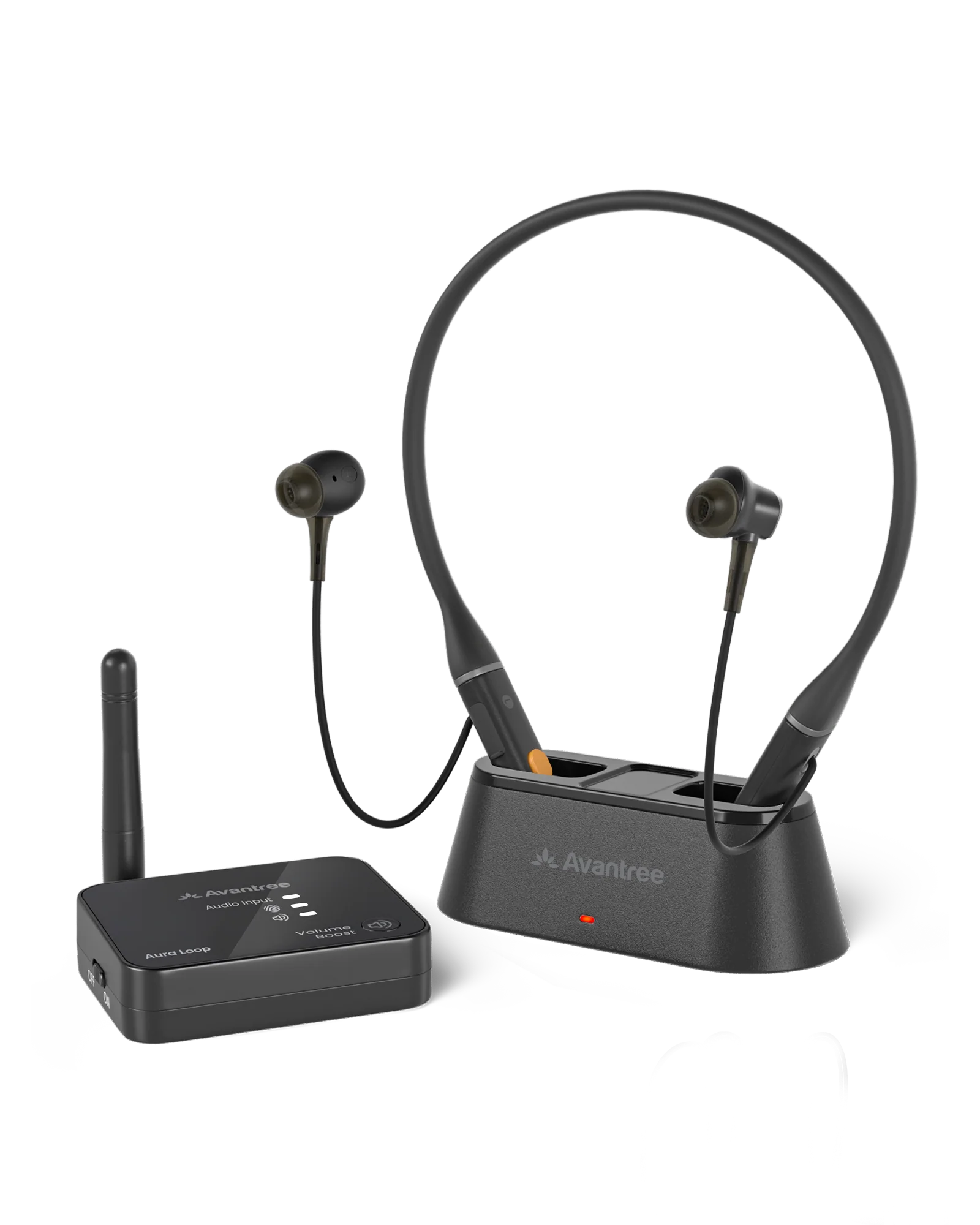 Aura Loop
Interactive user guide
Connect Aria Aura to a phone, computer, Bluetooth TV, home Auracast transmitter, or public Auracast broadcast.
 Bluetooth + Auracast
Start setup
Mode 1 · Bluetooth
Turn Aria Aura on.First use starts pairing. The LED flashes red and blue.
Open Bluetooth settings.Select Aria Aura.
Start audio.Solid blue means connected.
Solid blue LED and audio plays through Aria Aura.
Mode 2 · Auracast
Start here: basic Auracast connection
Turn Aria Aura on.
Hold Play / Pause for 5 seconds.Orange flashes while searching.
Stay near the transmitter.Solid orange means joined.
Solid orange LED and broadcast audio plays.
Auracast · At home
Use the same 5-second Auracast search near a compatible TV transmitter. Supported Avantree systems include:
Oasis AuraAudikast 4Opera AuraAura FocusAura LoopAuracast · Public venue
No password is required. Stay near the venue transmitter and follow the three Auracast steps above.
Success: the LED is solid orange and you hear the venue broadcast.
Auracast · Public venue
Use this only when the venue gives you a password.
Get the Avantree app.Required for secured broadcasts.



Connect Aria Aura to your phone.In Bluetooth settings, select Aria Aura. Wait for solid blue.
Open the app and choose Auracast.Select the broadcast. Enter the venue password.
Tap the information icon, then Save.Stay near the transmitter.
Watch the secured broadcast setup.
Solid orange LED and protected broadcast audio.
Advanced · Dual mode
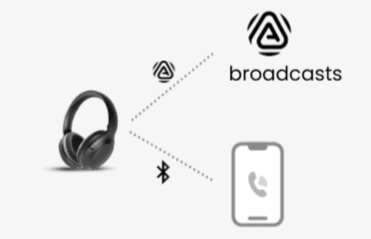
Connect Aria Aura to your phone first. Then join the Auracast broadcast. Calls pause the broadcast and it resumes afterward.
Quick help
Reference
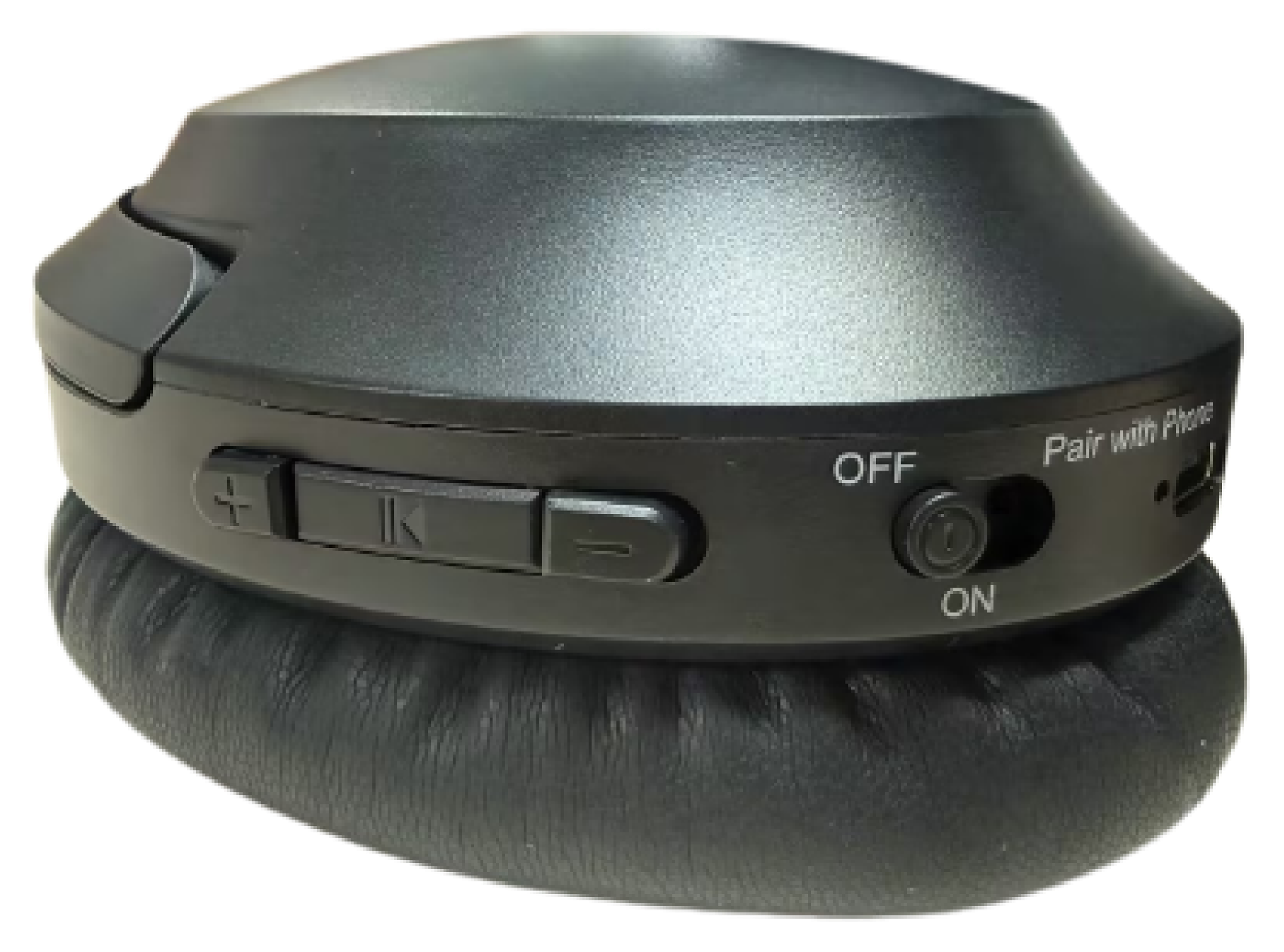 LED
LED
Firmware update
Download the Firmware Update Tool on a Windows/Mac computer.
Connect Aria Aura T to your computer with a USB data cable.
Firmware update cable: Use the gray-tip cable (a USB cable that supports data transfer) that came with your device.
Mac users can also use an Apple charging cable.
Open the Firmware Update Tool.
Follow the on-screen instructions.
Keep Aria Aura T connected until it says Complete.